
Personalize Experiences Using Tokens and Branching Logic
You can tailor Experiences by using tokens to make them feel more personalized, and branching logic to skip questions and follow a designed path. Both personalization and skipping questions use existing data passed on from previous steps within the Experience (which could for example be based on information provided by the participant).
To use tokens or branching logic, you need to place the modules in a logical order within the Experience. More details are described below.
Tokens
A token can be used to personalize an Experience using data already collected during that Experience.
Let's have a look at two example use cases:
- Use case 1 — Using the entered Name input field value as a token to personalize a follow-up question in a Single Choice question.
- Use case 2 — Using the selected value from a Single Choice question as a token to personalize a text callout after.
Use case 1
An Experience displays a form, in which is asked for the participant to enter their name.
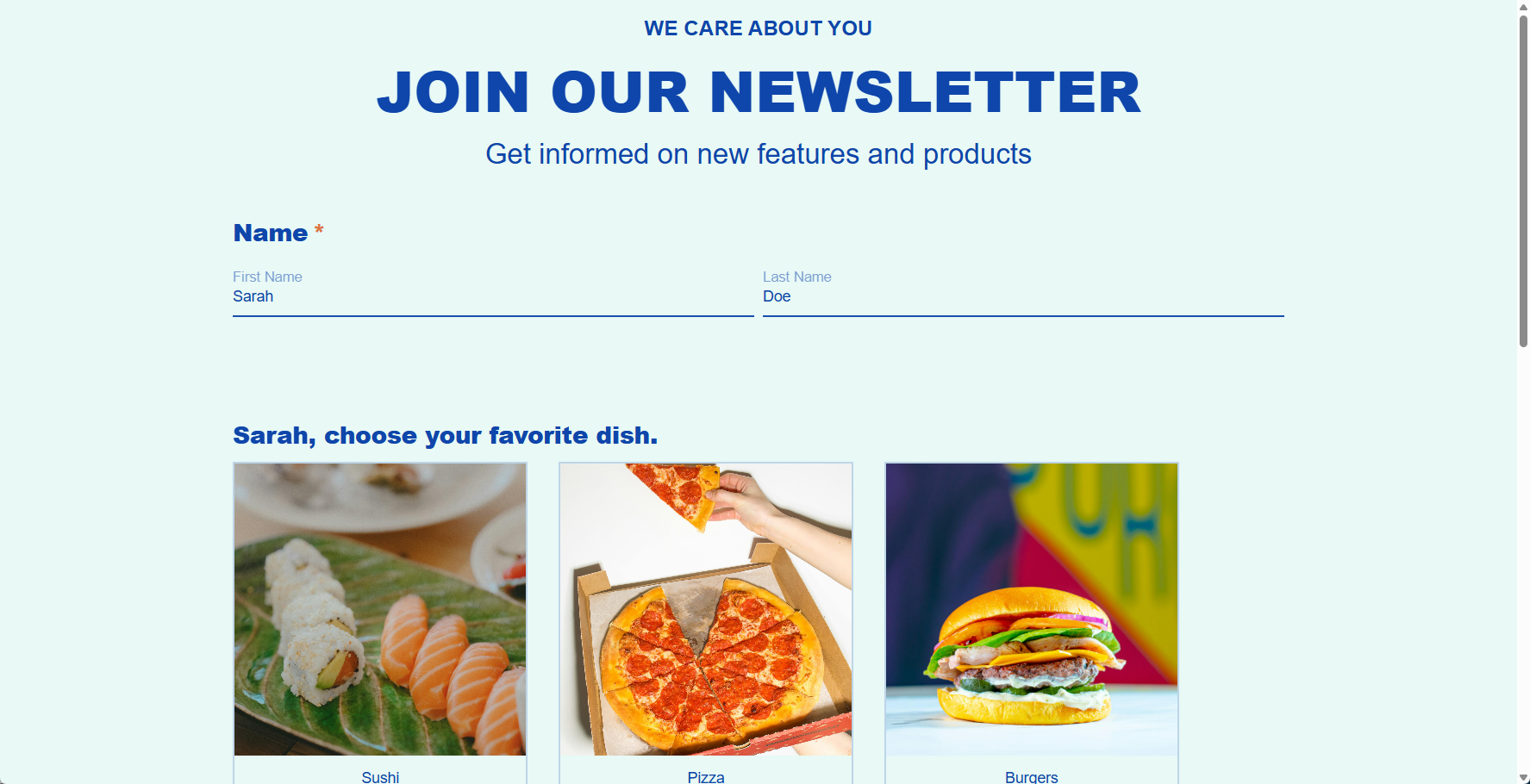
If a participant enters Sarah as first name, a follow-up question may be asked using that first name, stating: Sarah, choose your favorite dish.
Setup steps
- In the Form Section of the Experience, add a Name module (if not in there yet).
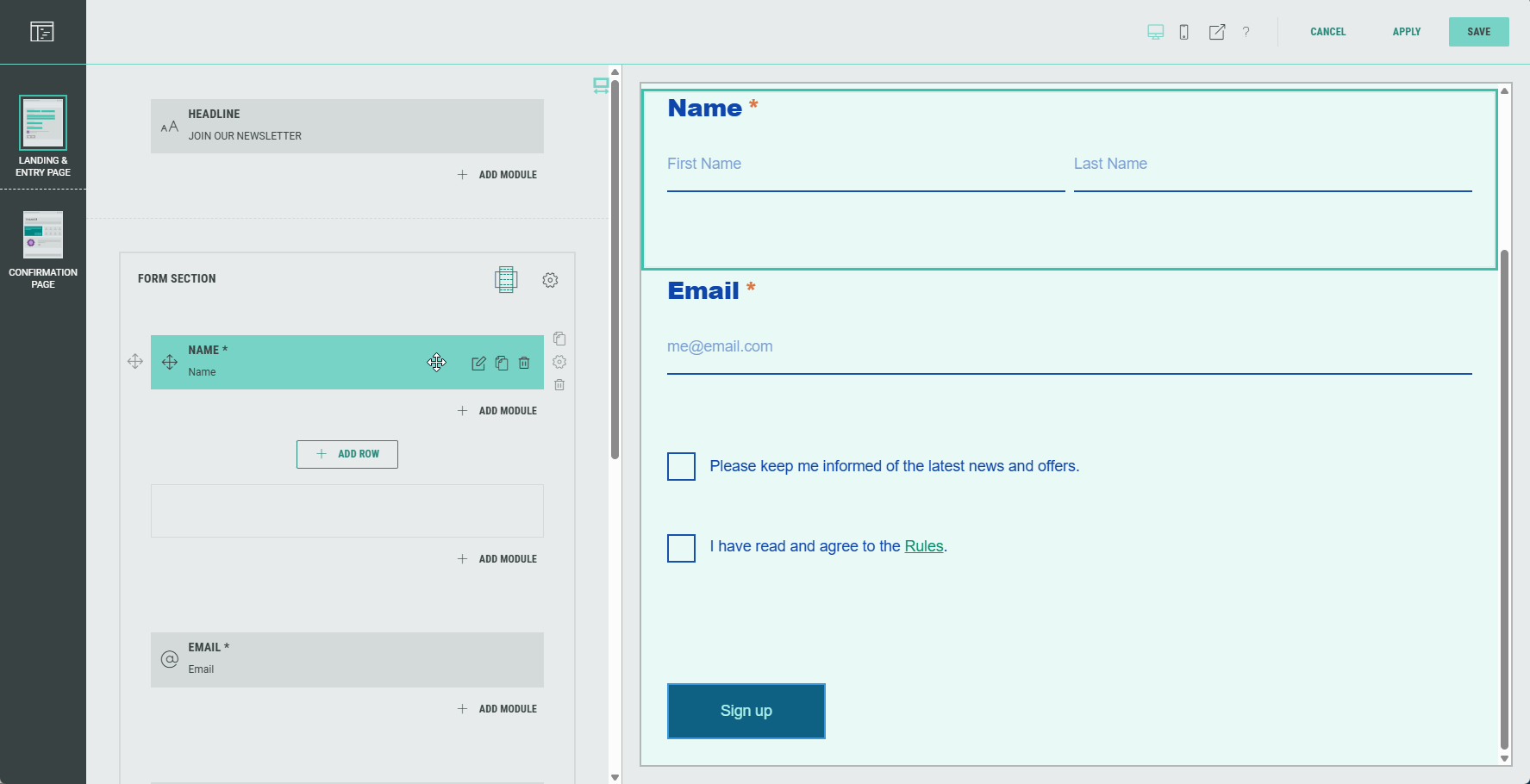
- For this example, we use both First and Last Name fields to be filled out by the participant in the Name module.
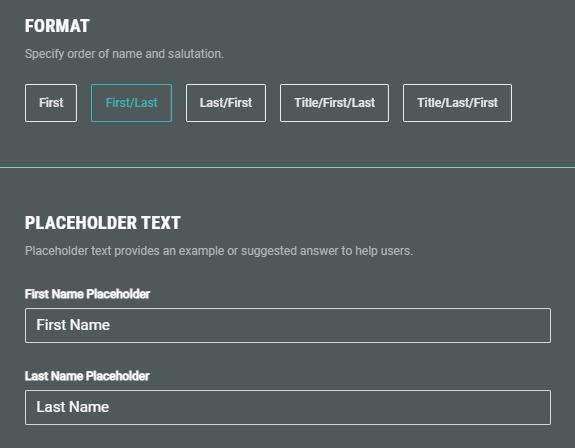
- To ask a follow-up question, you can add a Single Choice module after (underneath) the Name module.
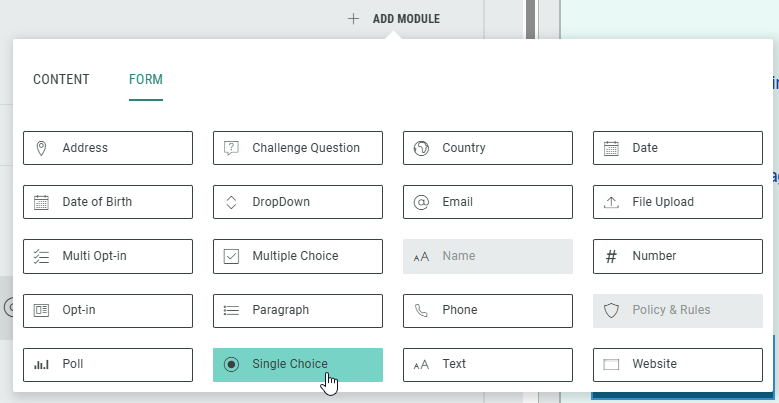
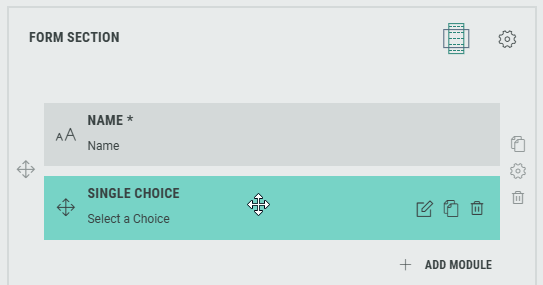
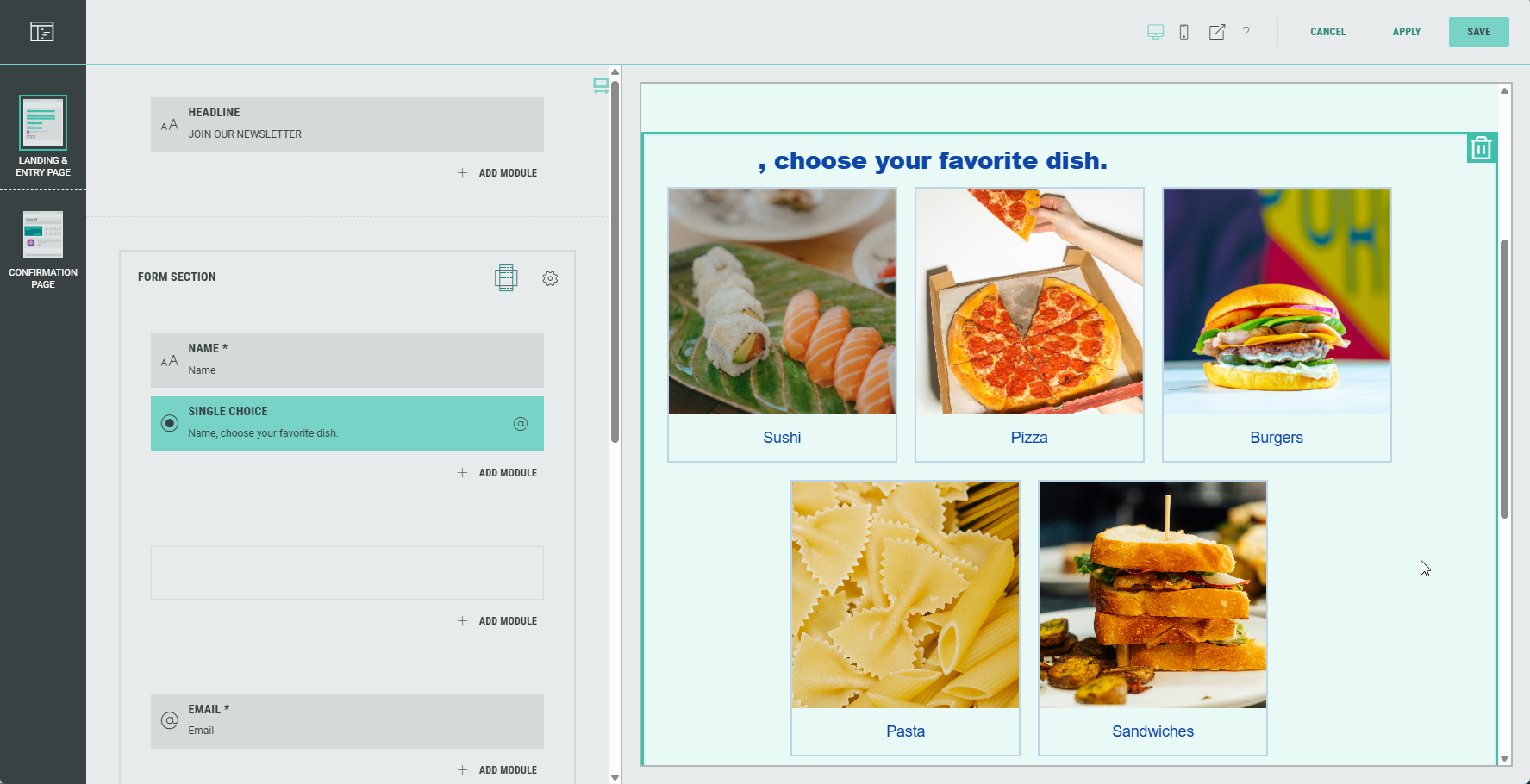
- Here you can see both modules underneath each other in the Form Section.
- Go into the settings of the Single Choice module. Let's change the label, so we'll ask: [First name], choose your favorite dish. To do so, type an @ sign in the field. This automatically pops up the available fields from previous modules in the form. Select the Name token.
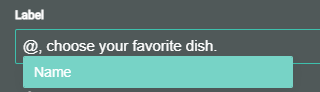
Note: Even if a participant enters both first name and last name, the @Name token will only use the value from the first name field, to make it more personal.
- Selected tokens are shown on a colored background.
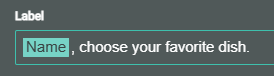
- In the preview on the right, for the token an empty placeholder is shown.

- Complete the Single Choice module with options and settings as you would otherwise do. See this article for more details on how to set up these basics.
Token in action
To test the Experience, click on the Preview icon at the top.

By default, the Experience looks like this:
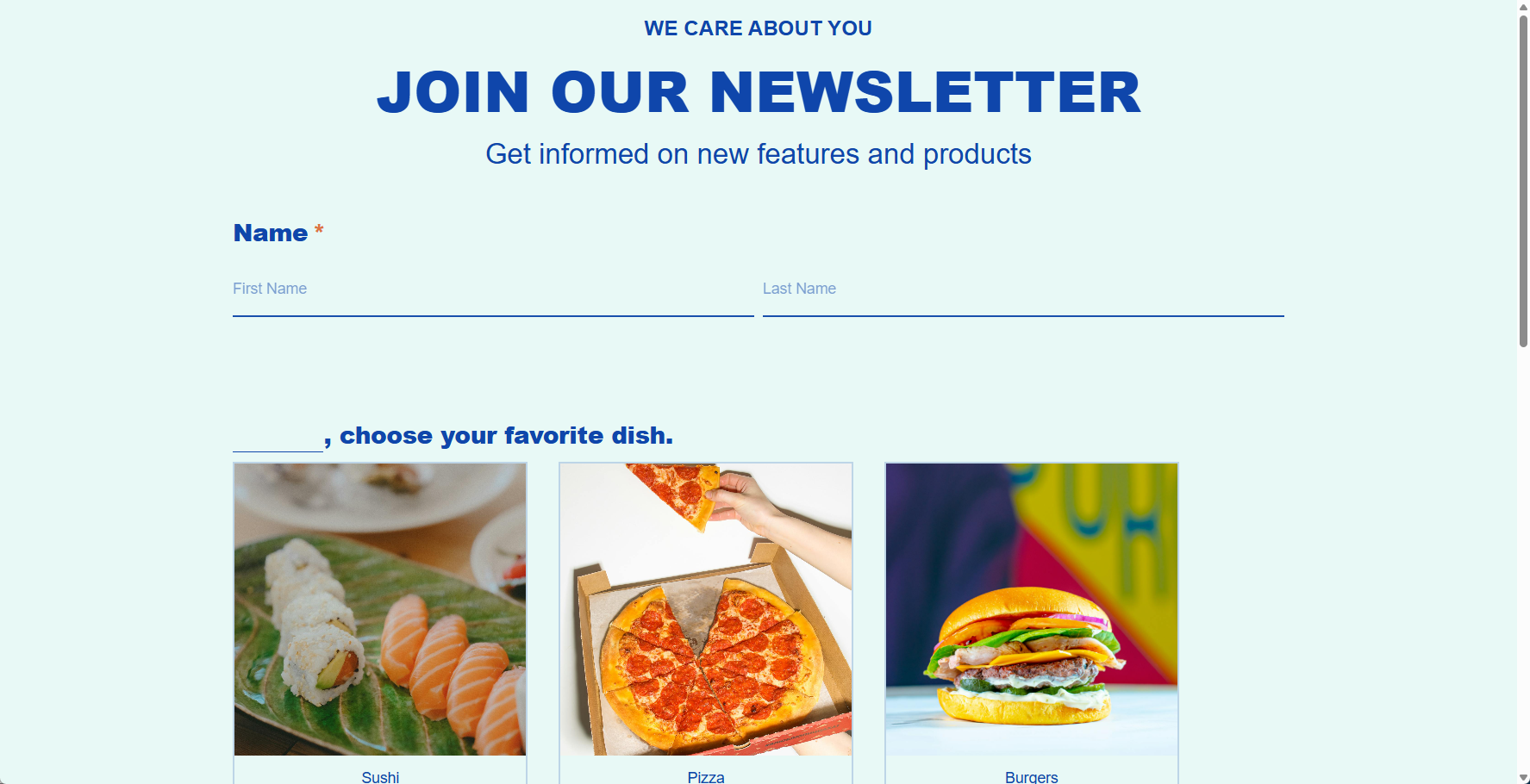
Enter Sarah as first name, and Doe as last name.
Automatically, the token is used to fill out the placeholder in the single choice question field, using the participant's first name, making the question feel more personalized.
Note: If you don't want participants to see the name placeholder, you can switch the Experience to Slide mode (horizontally or vertically) on the Design tab. That way, the name form fields can appear on the first slide and the personalized question can appear on the next slide.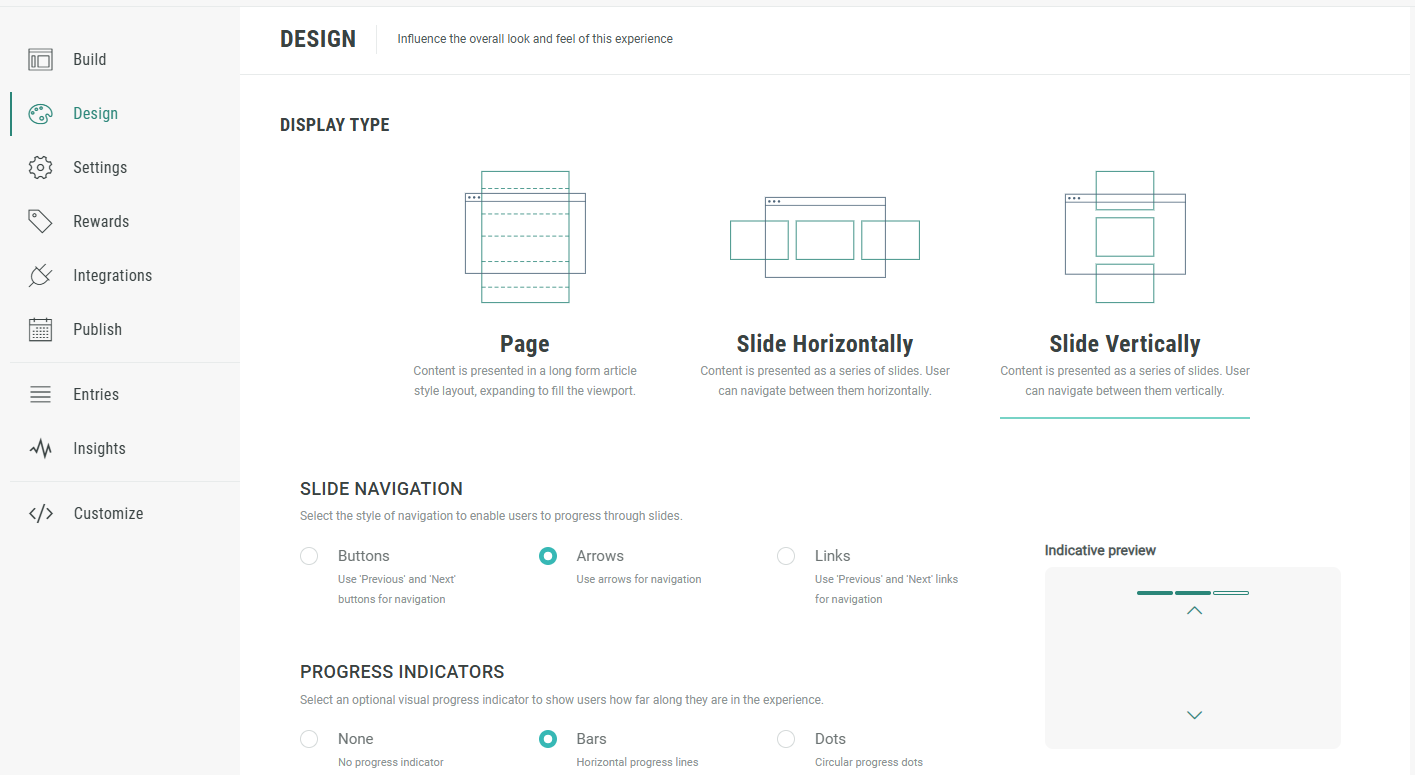
Use case 2
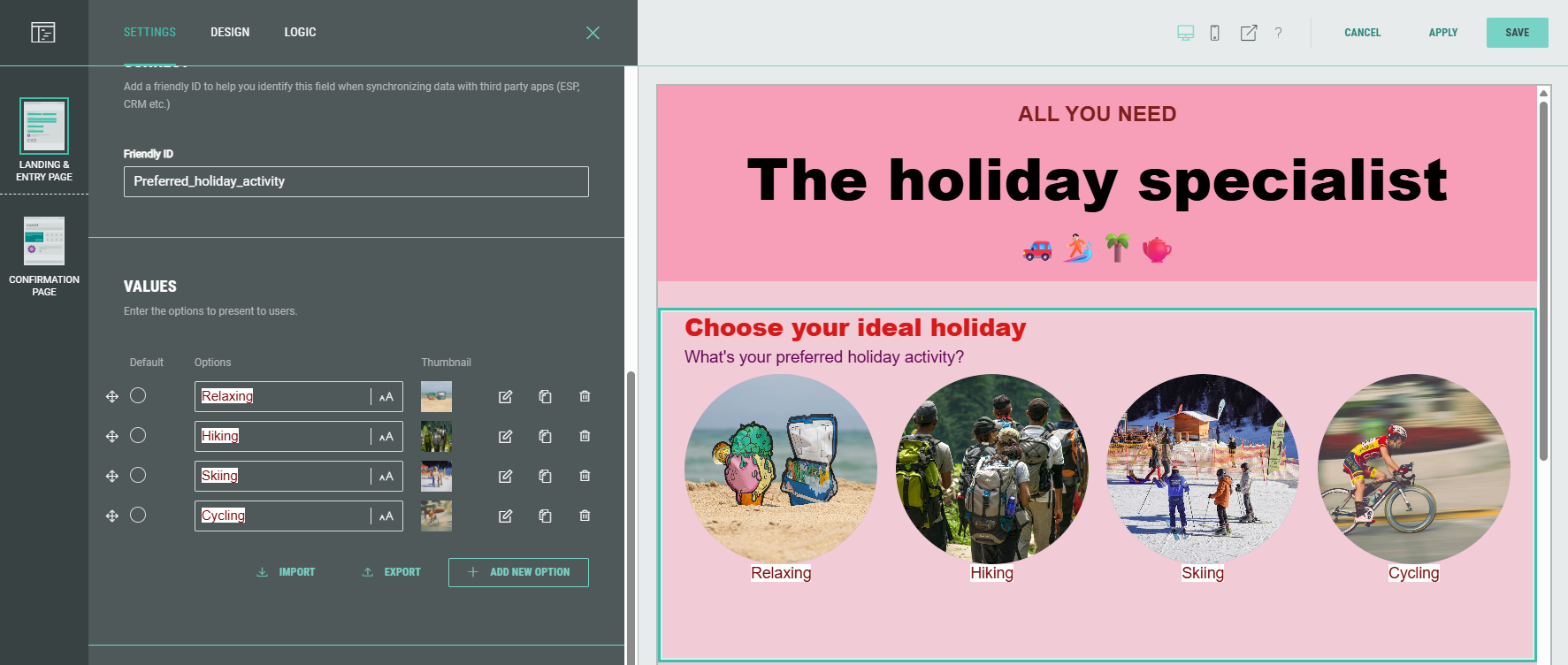
An Experience displays a form, in which is asked for the participant to choose their preferred holiday activity from four possible options (Relaxing, hiking, skiiing or cycling).
Underneath, we'll confirm that their choice is perfect, regardless what they've chosen.
Example:
If a participant chooses Cycling, the text underneath states: You're right! Cycling is an ideal holiday activity!.
If a participant chooses Hiking, that text states: You're right! Hiking is an ideal holiday activity!.
Setup steps
- In the Form Section of the Experience, add a Single Choice module (if not in there yet).
- Define the four possible options in the Single Choice module.
Complete the module configuration as you would otherwise do. See this article for more details on how to set up the basics.
- Underneath the Single Choice module, add a Text module.
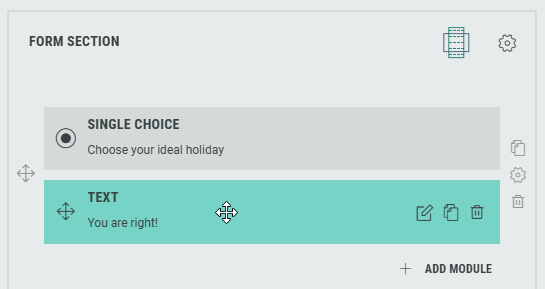
- Go into the settings of the Text module. Let's change the label to: You are right!
And in the byline, type an @ sign in the field. This automatically pops up the available fields from previous modules in the form. Select the Choose your ideal holiday token.
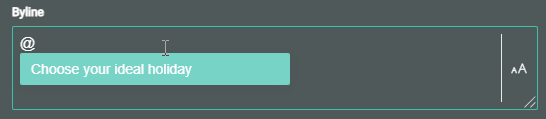
- Complete the Byline with the text: is an ideal holiday activity!
The selected token is shown on a colored background.
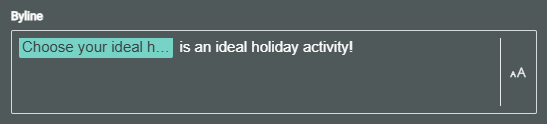
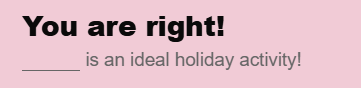
- In the preview on the right, for the token an empty placeholder is shown.
Token in action
To test the Experience, click on the Preview icon at the top.
By default, the Experience looks like this:
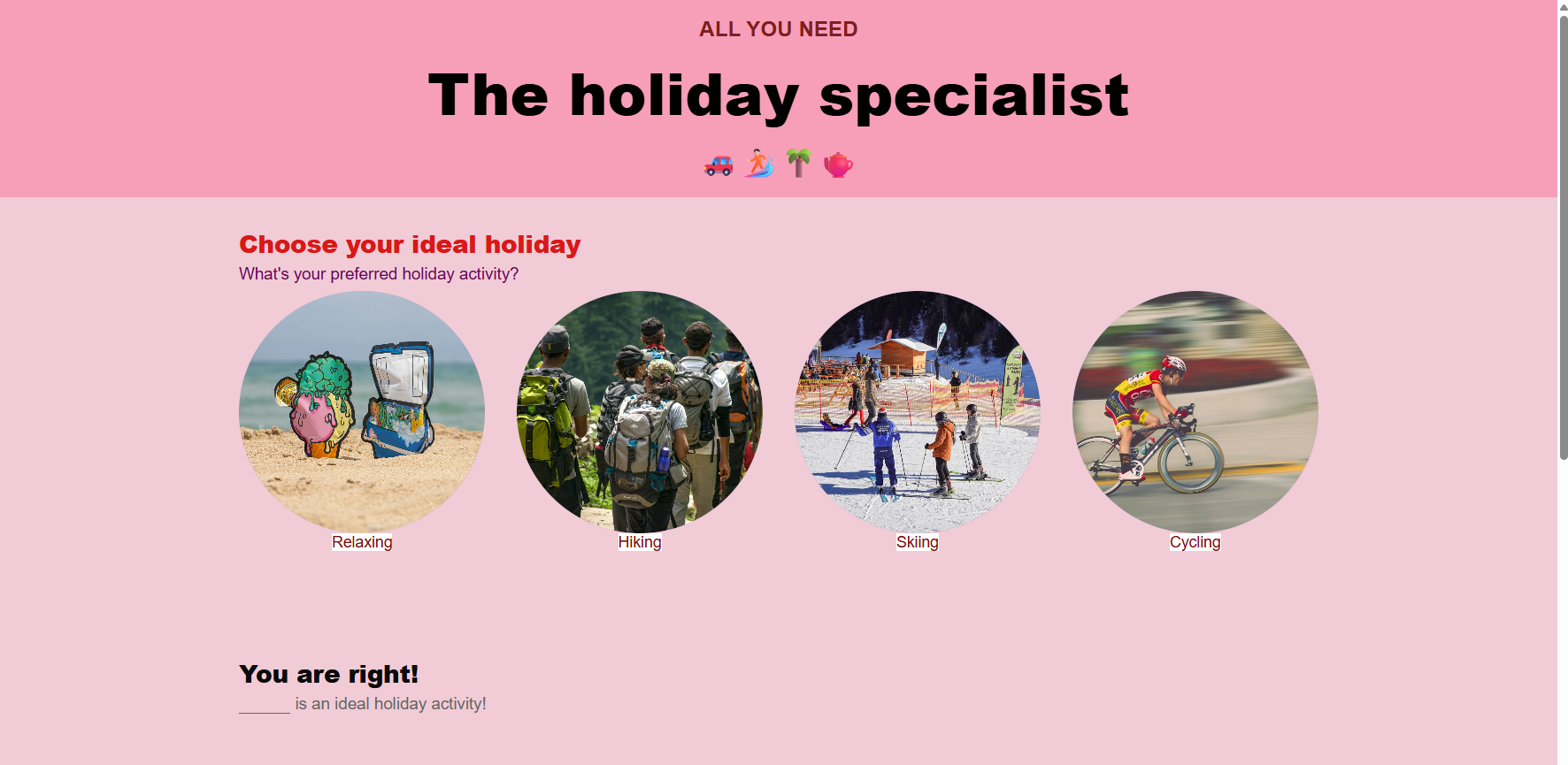
Select Hiking as your preferred holiday activity.
Automatically, the token is used to fill out the placeholder in the text field underneath, stating: You are right! Hiking is an ideal holiday activity!
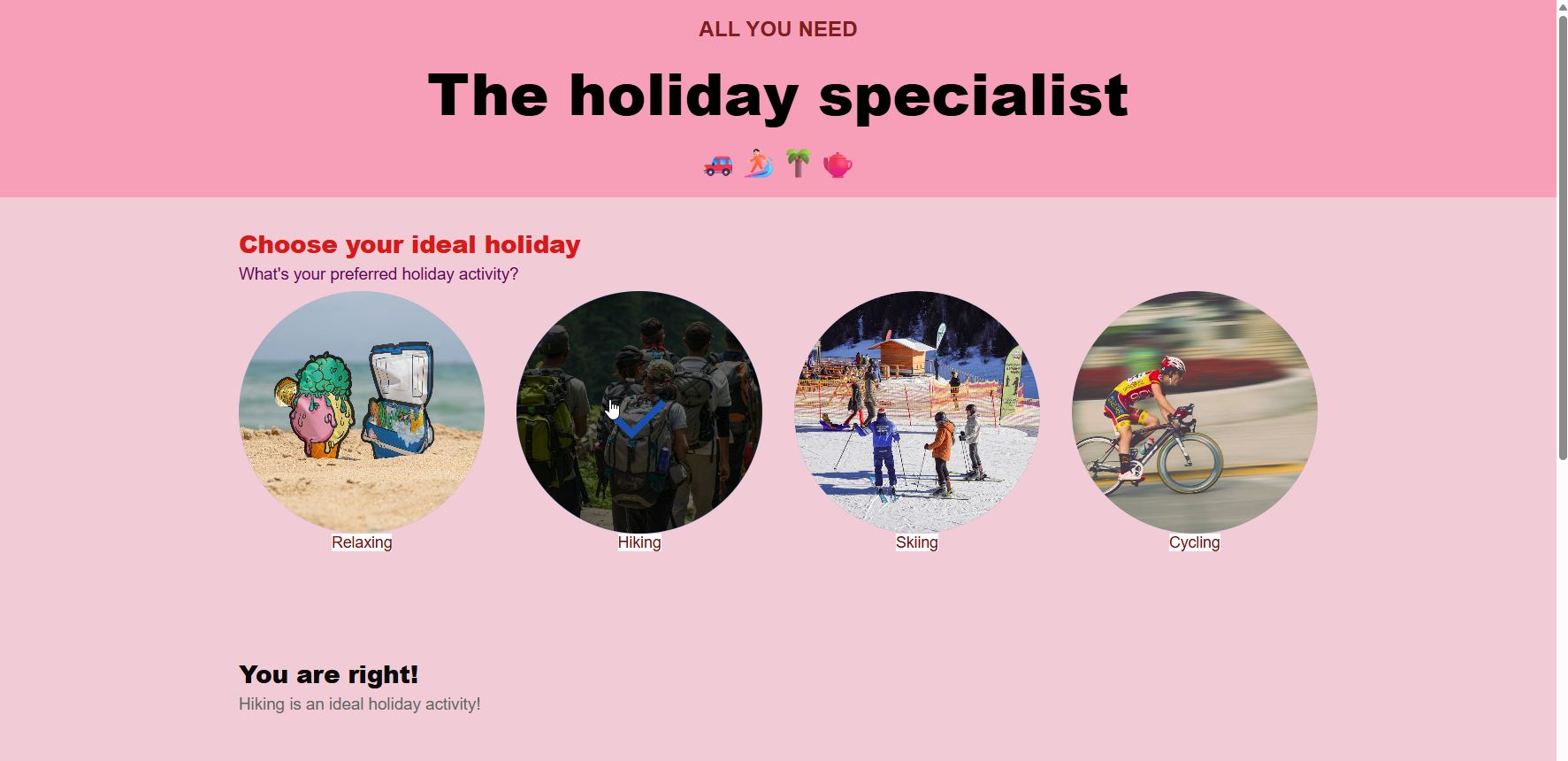
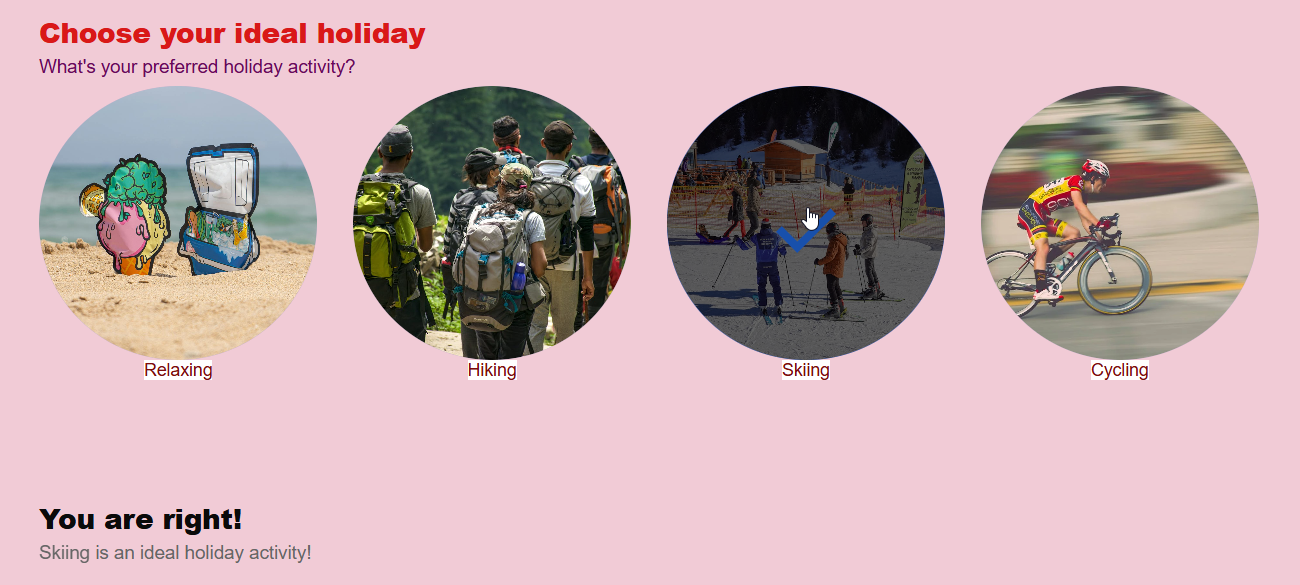
Selecting Skiing instead, changes the text on the fly to: You are right! Skiing is an ideal holiday activity!
Note: If you don't want participants to see the text placeholder, you can for example work with different pages/slides, where on page/slide 1 the participant is asked for choosing their preferred holiday activity, and page/slide 2 shows the text. That way, the placeholder will already be filled out with their choice upon entering page/slide 2.
Branching logic
Branching logic can be used to skip questions (based on previous answers), and to follow specific paths to obtain more relevant information from participants.
Note: The availability of the Branching Logic tab in a module's properties depends on the module(s) preceding it: Multiple Choice, Single Choice, DropDown, Multi Opt-in, Quiz Single Choice and Quiz Multiple Choice modules can trigger the branching logic in most subsequent modules, but some are excluded (such as the Policy & Rules module).
In the example below, we will show a question asking the participant which sports activity they prefer.
Depending on their choice, we'll ask a specific follow-up question.
For example: To those who select running, we will display a question about what terrain they prefer to run on.
Setup steps
-
In the Form Section of the Experience, add a Quiz Single Choice module (if not in there yet).

-
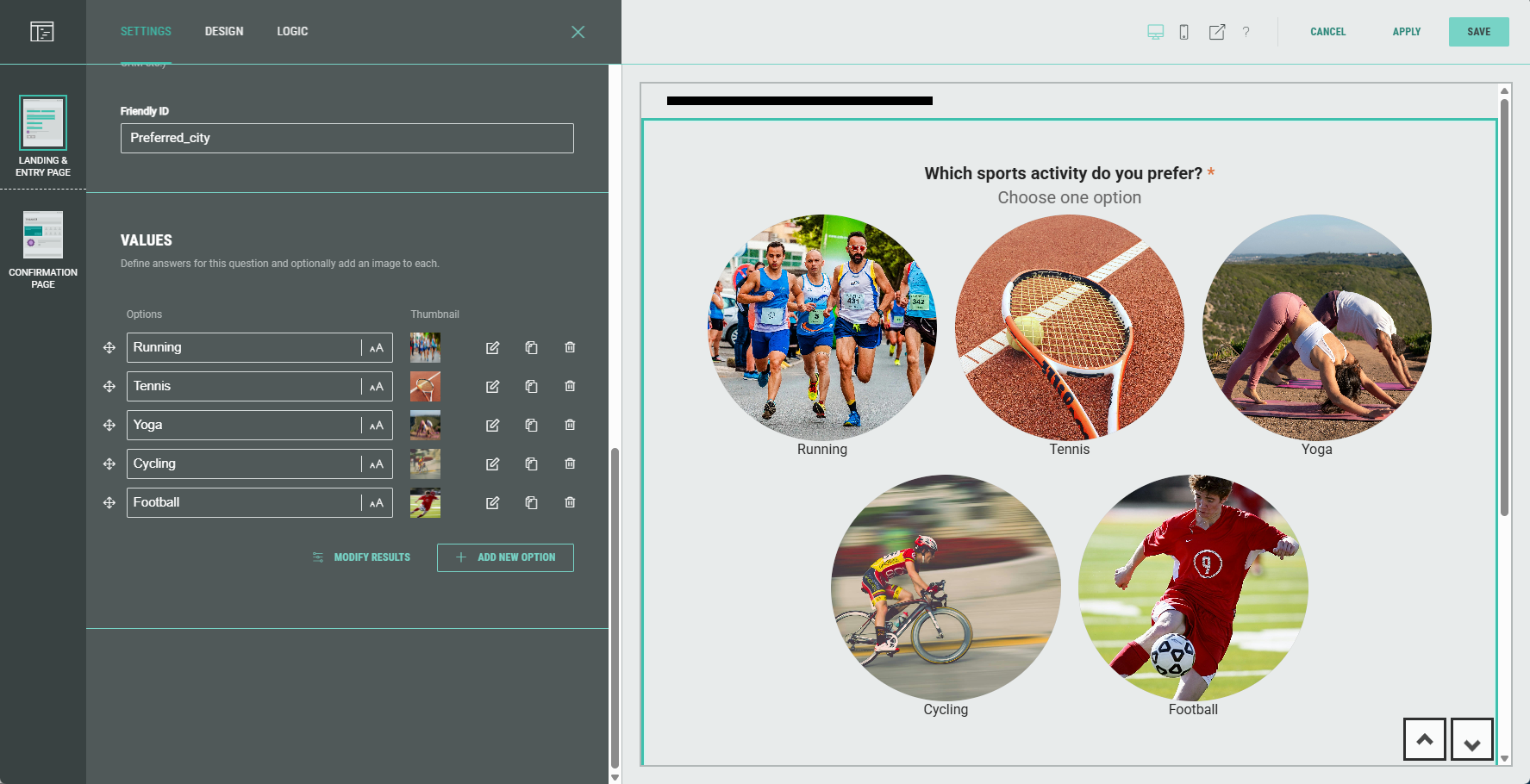
Edit the label and add the following answer values: Running, Tennis, Yoga, Cycling, Football.
-
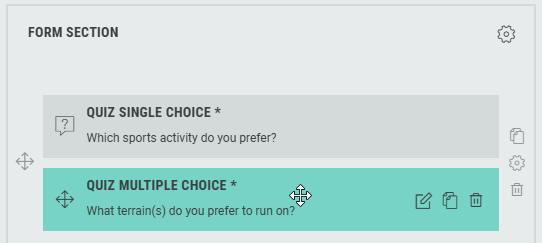
Under the Quiz Single Choice module, add a Quiz Multiple Choice module (if not in there yet).
-
Edit the label and add the following answer values: Road, Grass, Forest trails, Mud, Rocky trails, Gravel, Sand, Snow/ice, Treadmill.
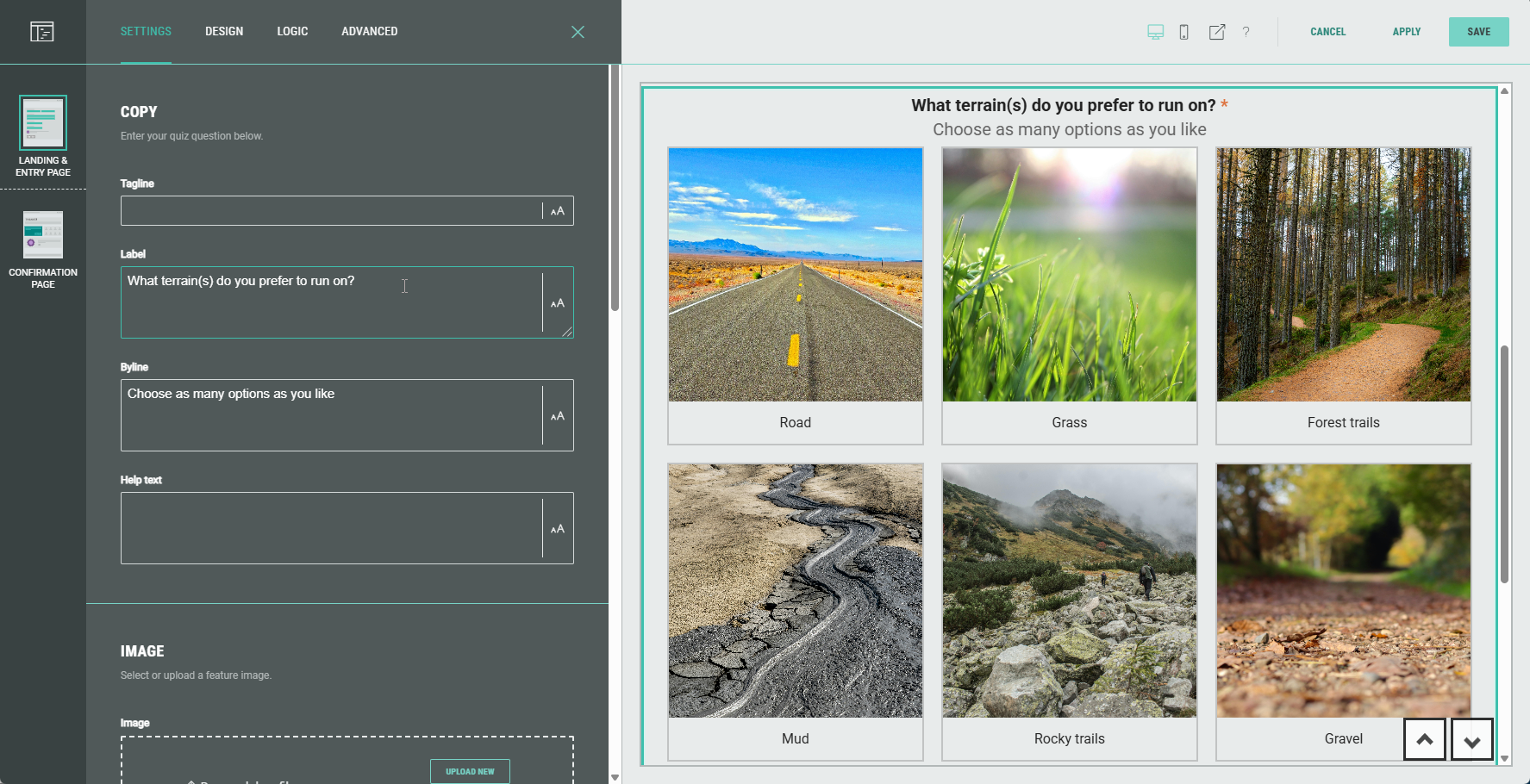
-
Whilst still in the Quiz Multiple Choice module, on the Logic tab, enable the Show field on conditional logic toggle. Then from the drop-down select the question Which sports activity do you prefer?, and tick the box next to Running.
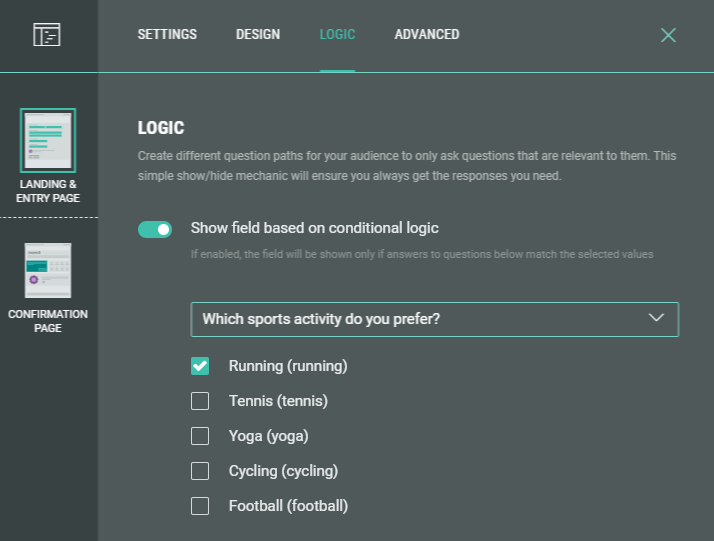
Note: The same way, for the other sports activities, different follow-up questions can be asked.
Branching logic in action
To test the Experience, click on the Preview icon at the top.
- Select the Running option.
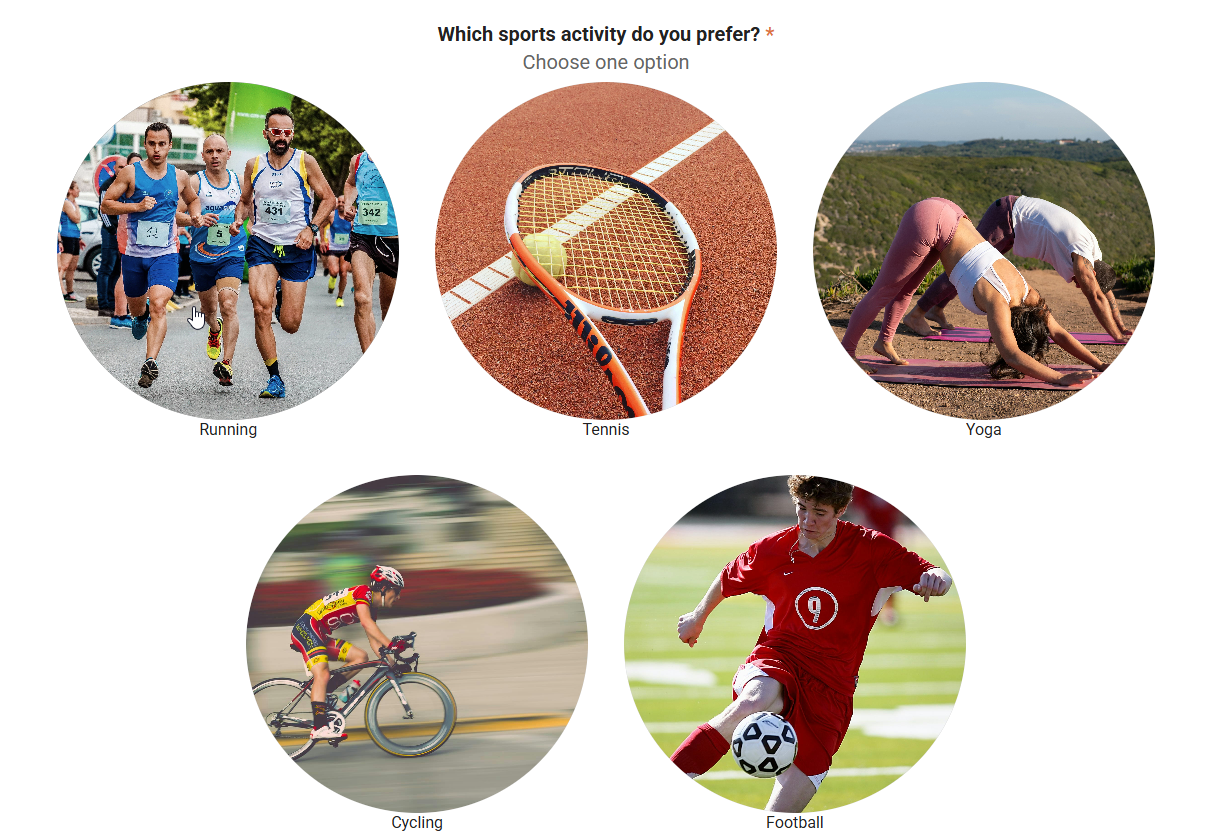
- The participant will then be asked the terrain follow-up question.
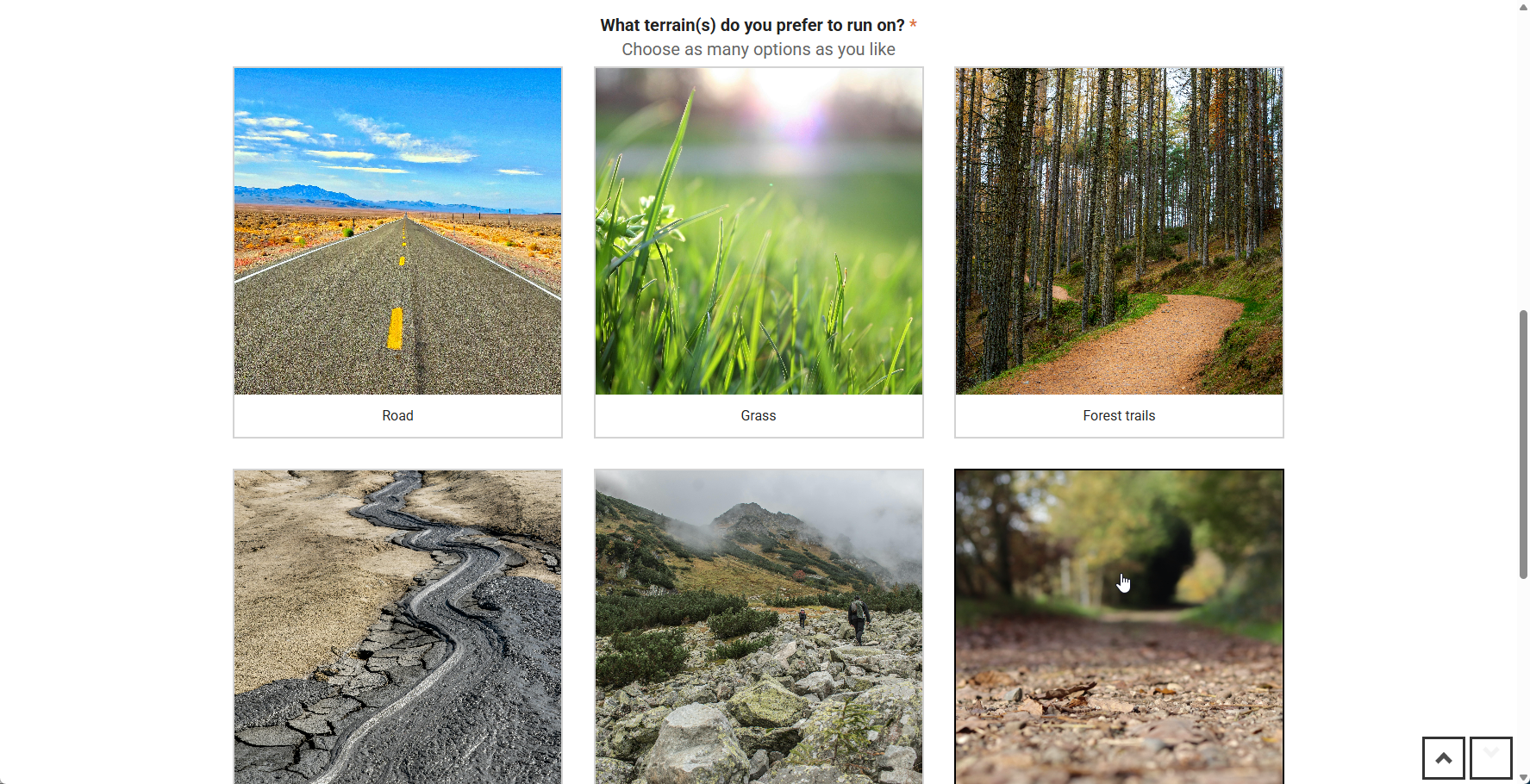
- When selecting another option, the terrain question will be skipped.
